Search Results That Jump Straight to the Page
Finding the right PDF used to be the finish line. Now it’s just the starting point. Say a visitor searches your site for a specific clause, a course code, or a product spec. Your search finds the right PDF, but it’s 80 pages long, and they still have to open the file and dig through
Finding the right PDF used to be the finish line. Now it’s just the starting point.
Say a visitor searches your site for a specific clause, a course code, or a product spec. Your search finds the right PDF, but it’s 80 pages long, and they still have to open the file and dig through it to find the actual answer. The search did its job. What happens after didn’t.
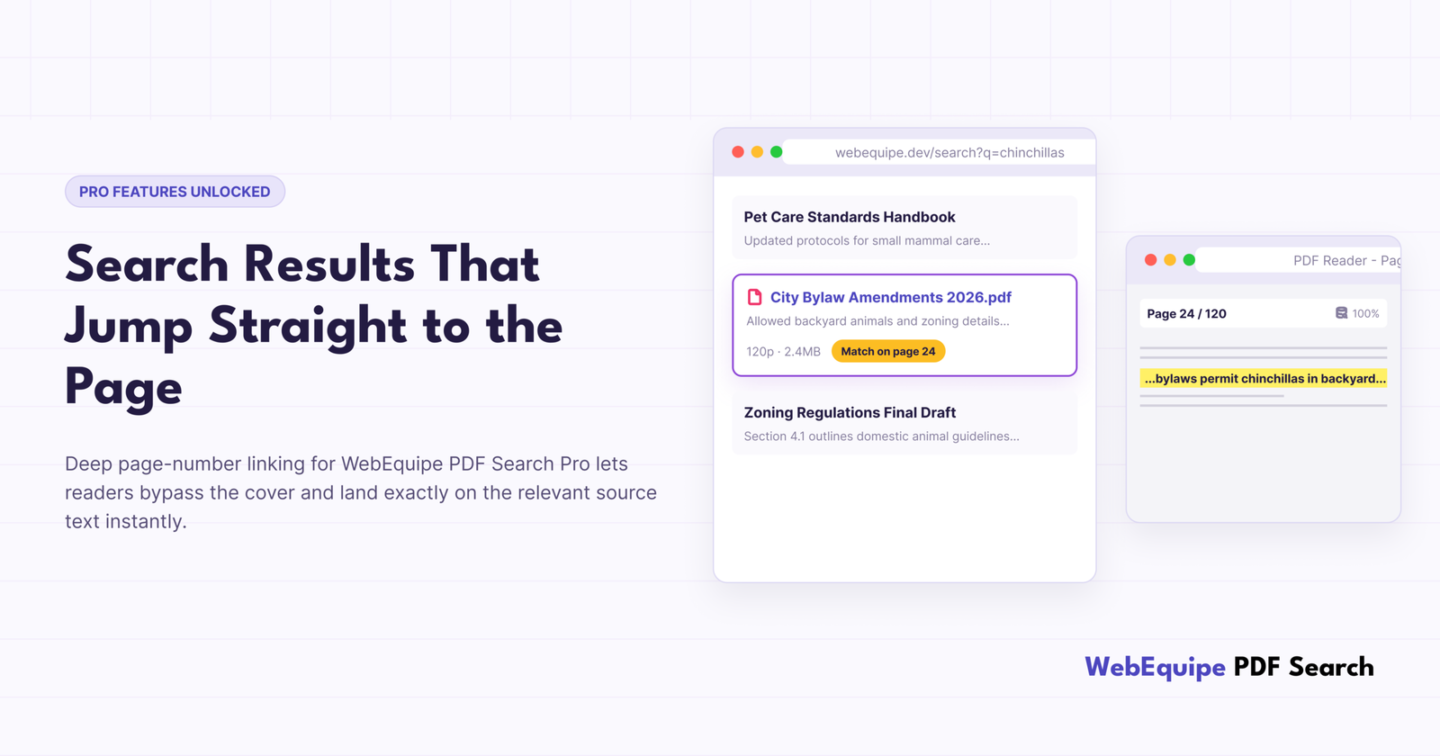
PDF Search Pro results now link straight to the page where the match was found, not just the file itself.
What Changed
Before this, every PDF result pointed to the document. Clicking it opened page one, no matter where the matched content actually sat. Fine for a two-page flyer. Not so fine for a handbook, a set of board minutes, or a 100-page catalog, where finding the right page meant scrolling, guessing, or running a second search inside whatever PDF viewer the browser happened to have.
Now, indexing tracks which page each bit of content lives on. Search results link to that page directly, so the PDF opens already scrolled to where the answer is.
A Real Example
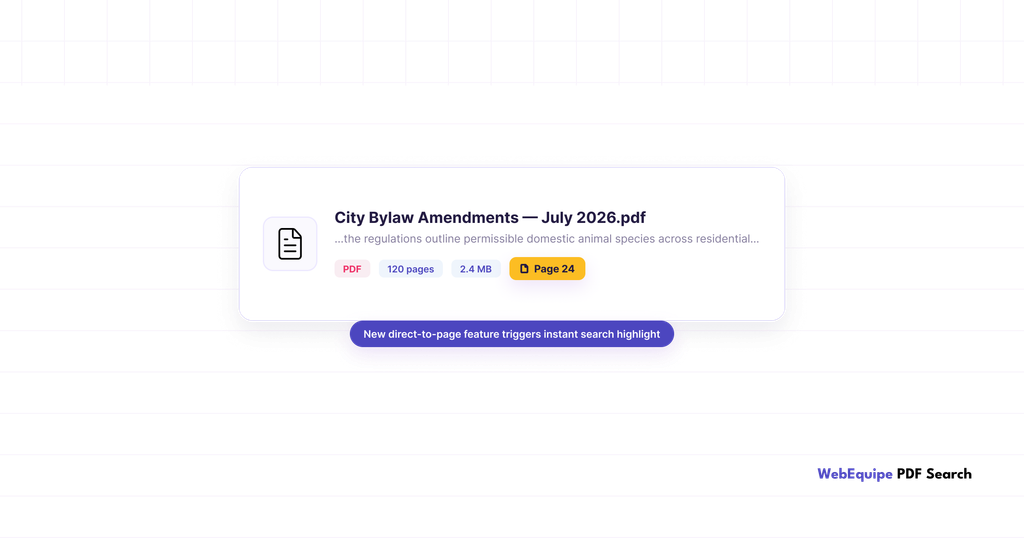
Picture a 120-page municipal bylaw document, the kind of PDF a local council might have sitting in its Media Library, covering everything from noise ordinances to pet regulations.
Someone searches “chinchillas,” because their town has rules about exotic pets and they want to know if theirs counts.
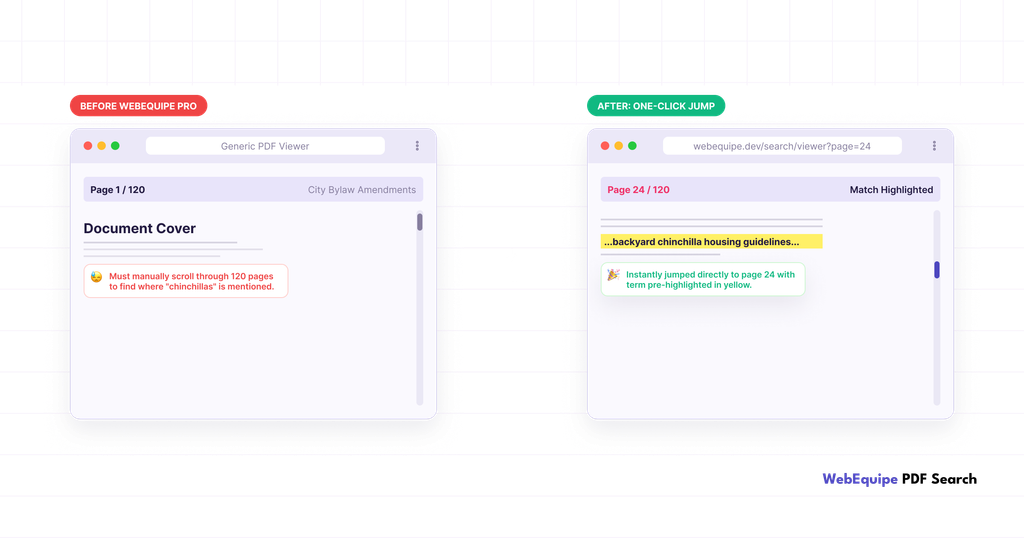
Before this update, the search finds the bylaw and links to it. They open a 120-page document that starts at page one. Most people give up before finding the section they need, or they close the tab and call the office instead.
Now the same search still finds the bylaw, but the result opens directly on the page where “chinchillas” shows up. One click, and they’re looking at the exact clause that answers their question.
Why It Matters
The bylaw example isn’t unusual. It’s the same shape of problem across most long PDFs a WordPress site ends up with:
- Handbooks and policy documents, where visitors need one clause, not the whole thing
- Course catalogs, where a student wants a specific listing, not the table of contents
- Product manuals, where the troubleshooting section is buried on page 40
- Meeting minutes, where someone’s looking for one agenda item out of forty
A document that technically contains the answer isn’t much help if getting to it takes five minutes of scrolling. Page linking closes that gap.
How It Works
There’s nothing to turn on. Page-level data gets captured automatically as part of indexing on Pro. If your library was already indexed before this update, you don’t need to do anything either. The data lives in the same per-page index structure that’s already there. New and re-indexed PDFs will just start using it.
What You’ll Actually See
Search results show a page reference now, alongside the usual file size and page count. Click a result and the PDF opens on that page instead of the first one.
For sites with big document libraries, universities with course catalogs, councils with agendas and bylaws, associations with member handbooks, this is the difference between “we have a search bar” and “you can actually find things.”
Frequently Asked Questions
Do I need to set anything up?
No, it works automatically once you’re on Pro.
Is this on the free version too?
No. Page-level linking is a Pro feature. Free indexes PDFs at the file level.
Will my existing indexed PDFs get page links, or only new ones?
If they’re already on the current per-page indexing structure, they’ll have it. Anything indexed under the older legacy structure will need a re-index to pick it up.
Does it work with scanned PDFs processed through OCR?
Yes, page tracking applies whether the text came from native extraction or OCR.
What happens if a term shows up on more than one page?
The result links to the strongest match, not every page it appears on.
Does this change how results are ranked?
No, ranking works the same. This only changes what page you land on after you click.
Try It
If you’re already on Pro, your next indexed PDF will pick this up automatically. For anything already in your library, run a re-index and it’ll apply to your current documents too.