Why WordPress Search Cannot Find Text Inside PDFs (and How to Fix It)
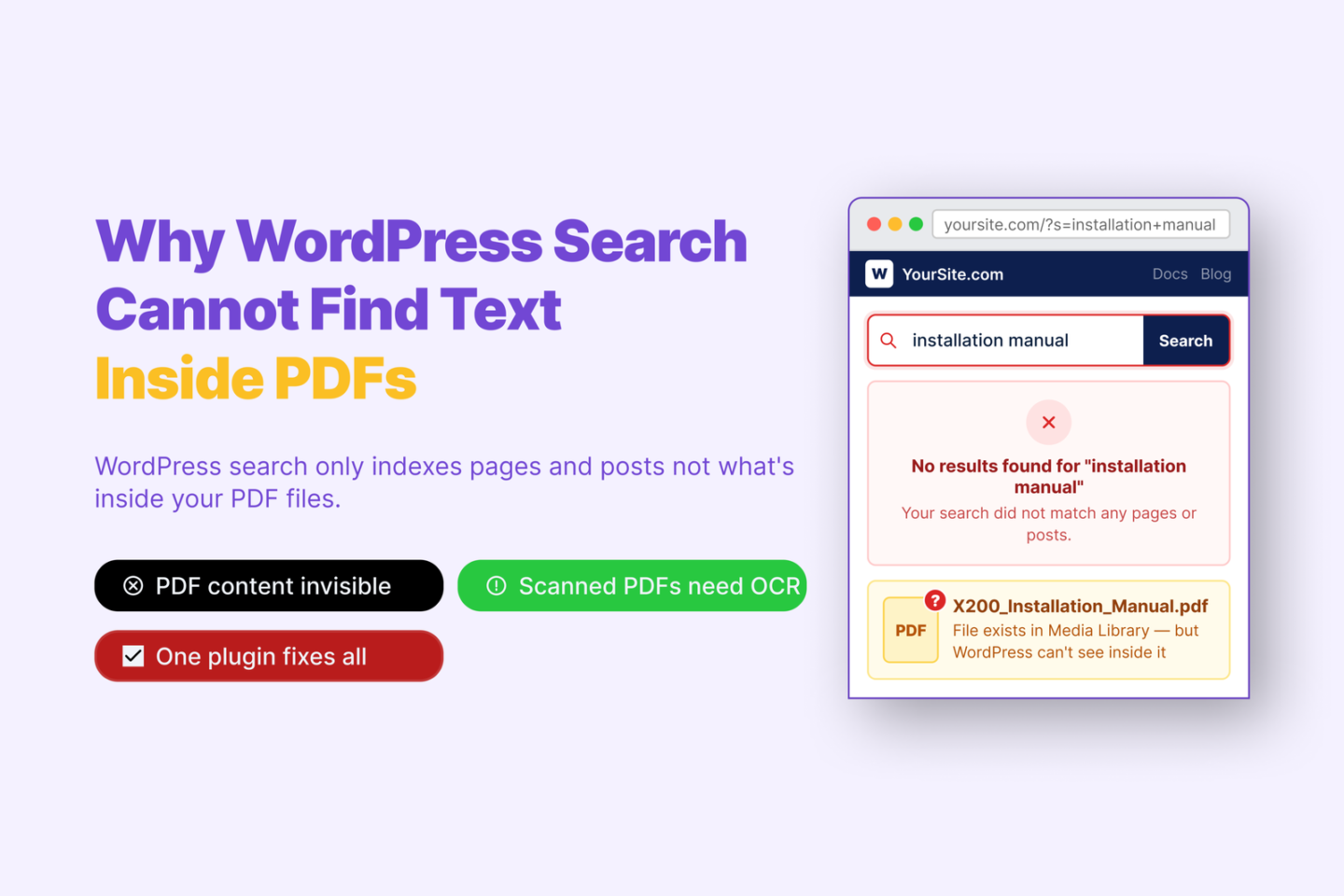
You search your own site for something you know is there. The word appears on page four of a PDF you uploaded last month. WordPress returns nothing.No results. Just that quiet, useless blank page.It feels like it should work. You uploaded the file. It’s sitting in your Media Library. Why can’t search find it? The

You search your own site for something you know is there. The word appears on page four of a PDF you uploaded last month. WordPress returns nothing.
No results. Just that quiet, useless blank page.
It feels like it should work. You uploaded the file. It’s sitting in your Media Library. Why can’t search find it? The answer is simpler than most people expect and so is the fix.
Why WordPress Cannot Find Text Inside PDFs
WordPress search works by looking through a specific table in your database — one that stores the content of your posts and pages. When you write a post or create a page, that content gets saved there and becomes searchable.
PDFs work differently. When you upload one, WordPress saves the filename, the URL, and a few basic file details. That’s it. It never opens the file or reads what’s inside.
So the actual text — the policies, the instructions, the answers your visitors are looking for — is sitting inside a file WordPress has never touched. It’s not a flaw. It’s just something WordPress was never built to do.
What’s Going Wrong — and How to Fix It
🟥 No PDF search plugin installed
Without a dedicated plugin, WordPress has no way to index PDF content. There’s nothing built in to do it.
Install WebEquipe PDF Search from Plugins → Add New. It’s free. Once active, go to PDF Search → Dashboard and click Re-index All PDFs.
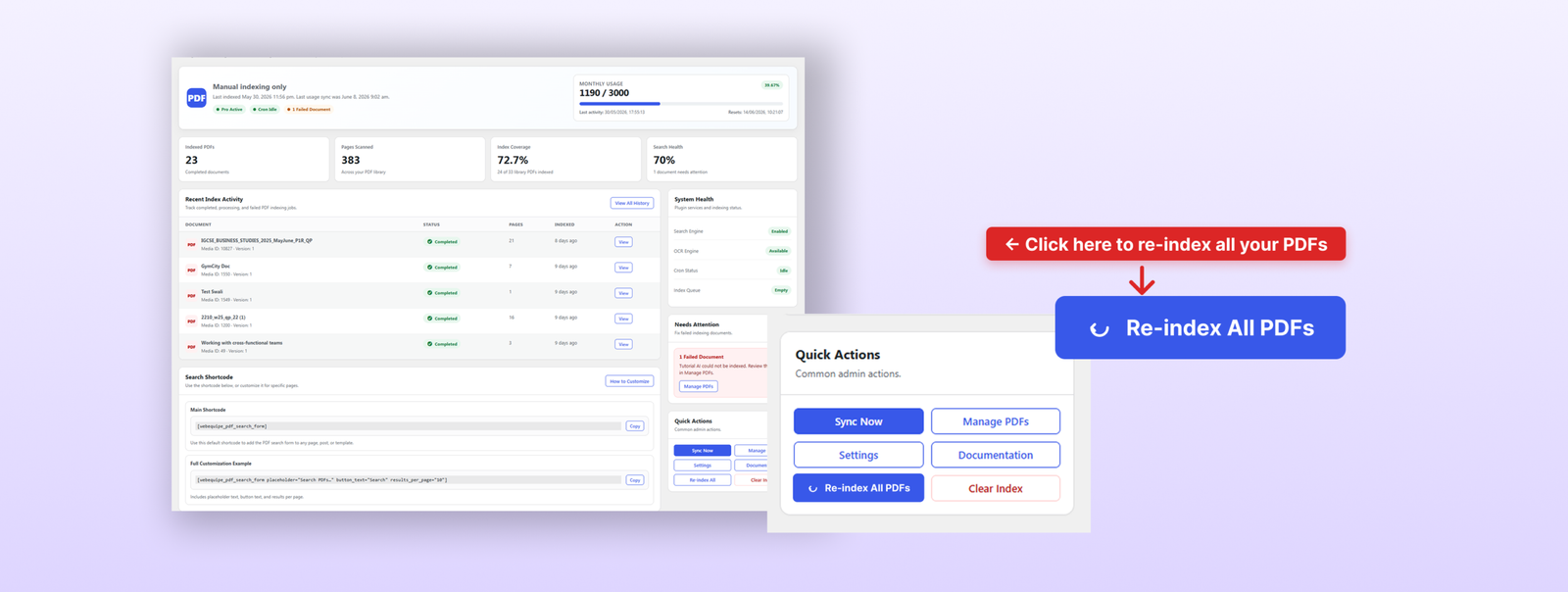
That one step indexes everything in your Media Library and makes the content searchable. Test it straight after search for a phrase you know is inside one of your PDFs.
🟥 PDFs were uploaded before the plugin was installed
Plugins only pick up new uploads automatically from the point they’re activated. Anything already in your library needs to be indexed manually.
Same fix — go to PDF Search → Dashboard and run Re-index All PDFs. One-time job.
🟥 Search integration is turned off
Some PDF search plugins index content but don’t automatically push results into WordPress search. There’s usually a separate toggle for this.
Go to PDF Search → Settings and confirm Enable Search Integration is on. Without it, your PDFs are indexed but invisible in search results.
🟥 A specific PDF has a status problem
If most PDFs are working but one or two aren’t, the issue is with those files specifically — not the plugin setup.
Go to PDF Search → Manage PDFs and look at the status badge on each file.
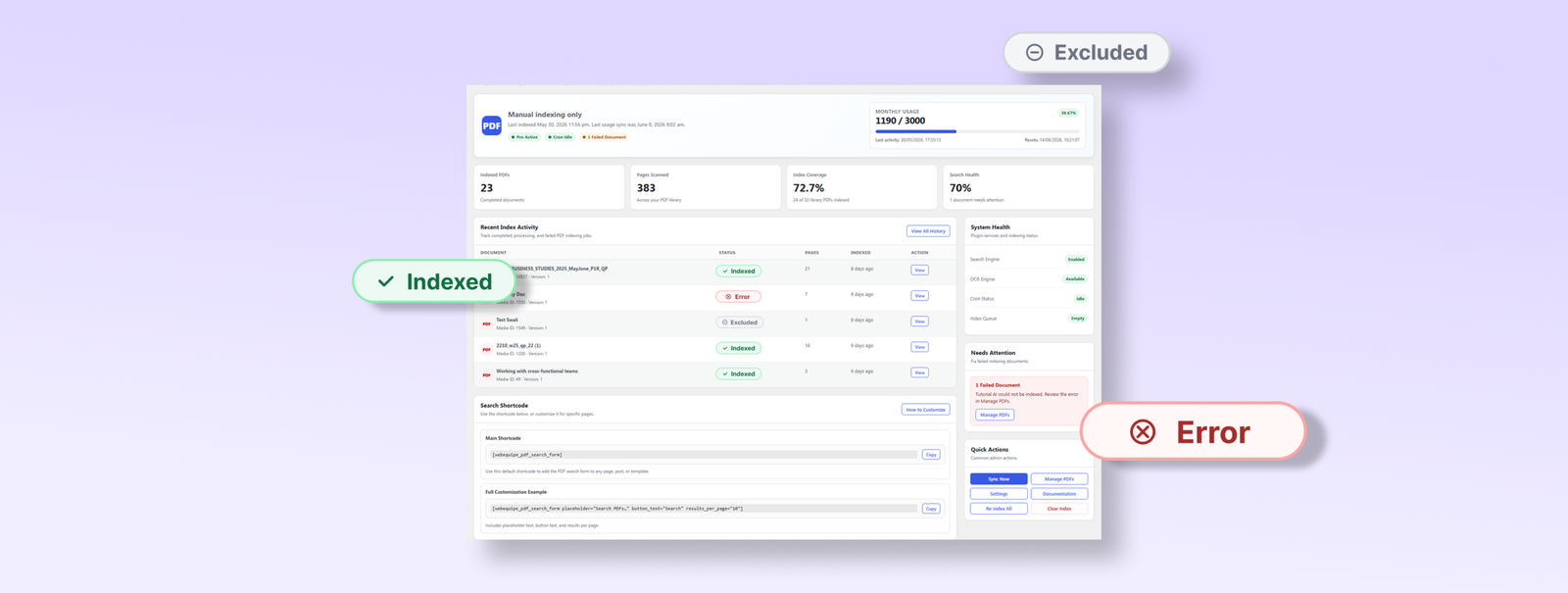
- Not Indexed — hasn’t been processed yet. Click Index.
- Excluded — deliberately removed from search. Click Include if it should be searchable.
- Error — indexing failed. Usually means the file is scanned, corrupted, or password-protected.
🟥 The file is too large and timed out
Very large PDFs can hit PHP execution time limits mid-process. Indexing stops partway through and the file ends up in an error state.
Go to PDF Search → Settings → Advanced and enable Background Processing. This moves indexing into a queue that runs independently — large files get the time they need without hitting server limits.
🟥 The PDF is a scanned document
Scanned PDFs — documents that were printed and photographed, or run through a scanner — are images packaged as PDF files. There’s no text layer inside. No standard plugin can read them.
Open the PDF in your browser and try to highlight some text. If your cursor just draws a box over the image without selecting anything, it’s scanned.
Full guide: How to Make Scanned PDFs Searchable on WordPress →
Frequently Asked Questions
Why does my PDF title appear in search but not the content inside it?
WordPress stores filenames and basic metadata for all media attachments, so the title can show up even when the content hasn’t been indexed. You need a PDF search plugin to actually read and index what’s inside the file.
I installed a plugin but my old PDFs still don’t show up.
Plugins only index new uploads automatically from the point they’re installed. For everything already in
our library, run Re-index All PDFs manually from the plugin dashboard. One-time job, takes a few
inutes depending on library size.
Some PDFs index fine but others show Error. What’s wrong with them?
Error almost always means the PDF is scanned with no text layer, or the file is corrupted or password-protected. Open it in your browser and try to select some text. If you can’t, it’s scanned and needs OCR.
My PDFs are indexed but still not appearing in search results.
Check that Enable Search Integration is turned on in your plugin settings. Also check the PDF isn’t set to Excluded. If both look fine, try searching for a very specific phrase you know is inside the document.
Can WordPress search inside password-protected PDFs?
No. A locked PDF can’t be read by any plugin. The file needs to be unlocked before it can be indexed.
Still Not Working?
Run through the fixes above in order — most cases resolve at the first or second step. If you’re stuck on scanned PDFs showing as Error, that’s not something the free plugin can solve. It genuinely needs OCR, and PDF Search Pro handles that without any extra setup.
If you’re starting fresh and want the full setup walkthrough:
How to Make WordPress Search Inside PDF Files →